Activating your new Trigonon device
NOTE: You will need a PC or Laptop with a working USB port to perform these steps.
Step 1
Open your order
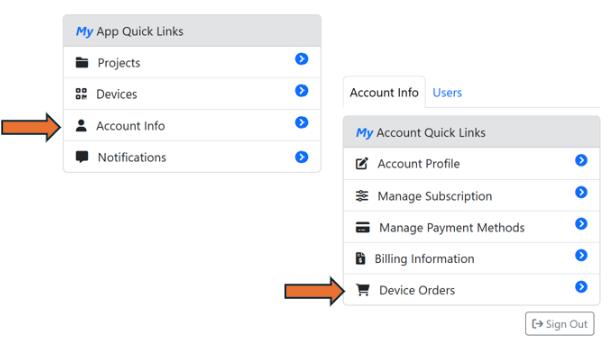
Log into your account, then select Account Info, and then Device Orders.
Step 2
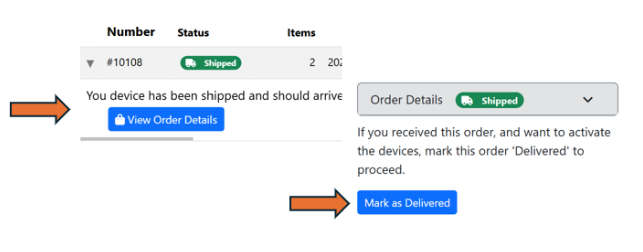
Expand your order row, and press View Order Details, then press Mark as Delivered to begin the activation process.
Step 3
Once you mark the order as delivered, you will be able to activate the device(s) shipped with the order.
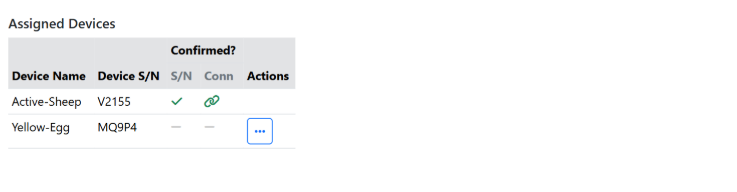
Overview of process: You will see one row for each device ordered. The actions involved in activation are as follows:
- You will need to confirm that the device you received matches the device assigned to your order.
- You need to configure WiFi for your device. This is most likely going to be to the hot-spot of the device you will use in the field, but you can configure multiple WiFi connections on any device.
- You will test that the WiFi connection works.
- You will claim the device to your account and activate it.
Step 4
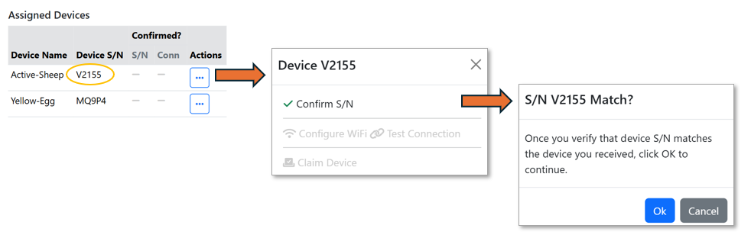
Confirm the device Serial Number (S/N) by comparing the number etched in the bottom of the device with the S/N on the device row on the screen.
If they match, then press the Action button, select Confirm S/N and press Ok.
If the numbers do not match, submit a Support ticket immediately and we will address the issue.
Step 5
To configure the WiFi, we start by pressing the Action button, then selecting Configure Wifi.
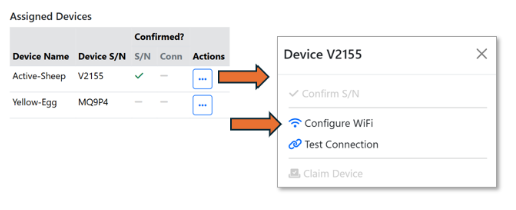
This will take you to a page where you can access the device through the USB port. Using the provided USB cable, connect the device to your laptop or PC. Once connected, ensure the power is on, and the multi-function LED is blinking on and off slowly with a dark blue color. You will see this LED as indicated here:
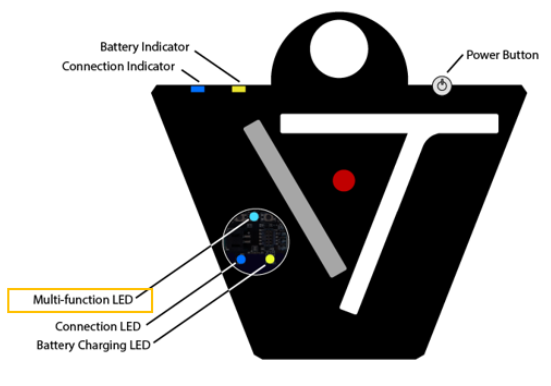
Note: if the multi-function LED is rapidly blinking green, you are OK to proceed as well. That just means the device already has a WiFi connection setup, but the network is out of range.
On the Device Wifi Configuration Screen, press Select Device. Then on the prompt dialog that opens, choose the Photon P2 (or similar) device and press Connect.
This will scan the available networks and load the list. Choose your network from the list of WiFi SSIDs, enter the password, and press Connect.
If your network is visible, ensure it’s turned on and broadcasting, the press Re-Scan.
If successful, you will see a popup. If not, you will get a warning. Once successful, the device will restart itself, and connect. After several seconds, you should see the Multi-function LED start to blink Cyan slowly (like a heartbeat).
Step 6
To test network connectivity, start again by pressing the Action button, then choose Test Connection.
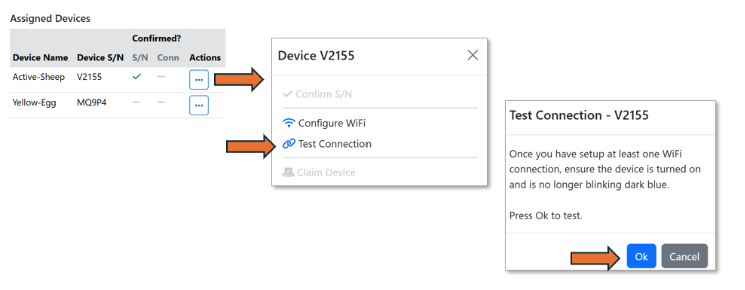
Press OK to test the WiFi connection.
Step 7
The final step is to claim the device and activate it on your account. Start again with the Action button, press Claim Device, and then Ok.
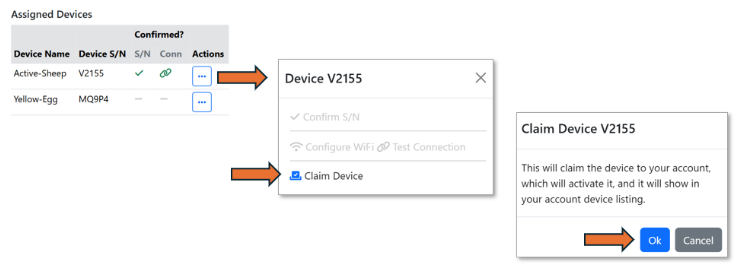
That’s It!! You have successfully registered your device. You will the Action button is now missing, and you can repeat these steps on any other device you received.
Once completed, press Home in the breadcrumb navigation, and you can begin using the device and creating projects.