
Once you have completed Trigonon University, you will know how to setup your AB targets and be ready for measuring in the field. However, we have found that pool companies still like to be able to take additional practice shots, or just show employees how it works!
So, we set up a “Practice” button when the App opens.
You get two choices:
- Target Hover
- Point & Shoot
After you click on the “Practice” button, you can then decide which shot you want to to take. The “Target Hover” is what you will be using 90% of the time. This is a proprietary feature of the Trigonon device! It allows you to shoot a laser at a round object and have the device calculate the middle of the bucket. Why is that important? If you are 20 feet away from an object, there is a certain amount of “sway” that happens naturally. Without our “hovering” technology, the device may take a measurement that is slightly off from the precise location of the targets. With the hover technology built-in, the device still gives the precise point at the middle of the bucket. So, you can be moving slightly and it will still get the correct measurement!
For a Target Hover shot, simply click on the “Target Hover” button.
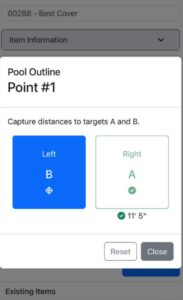
It will display both “A” and “B” buttons. You can choose either button first.
NOTE: We suggest choosing A first and always shooting the A bucket on the right and then the B bucket. You can do the reverse… but it helps to have a process. Meaning, if you do that every time, you will always choose the button and then measure the correct corresponding bucket! If on the other hand, you choose “B” but shoot at the A bucket by accident, you will cause a measuring error. So, it helps to have a process of “always hit A first and then always measure bucket A” to eliminate possible errors in measuring.
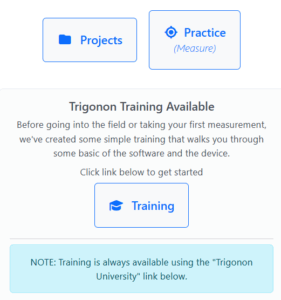
click on the Practice button
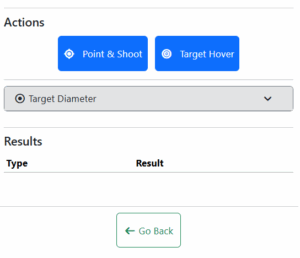
click Target Hover
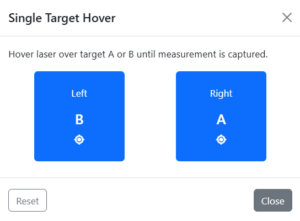
start with A then B
Taking the Measurement
Once you hit the A button, it will turn yellow, which lets you know the green targeting laser is on and is waiting for you to aim it at the A bucket. Once there, click A again and the green laser will go off and it will start measuring. Just leave it held there until you hear the beep. The A button will also turn white once the measurement is complete.
Then, repeat with the B button and remember to aim at the B bucket!
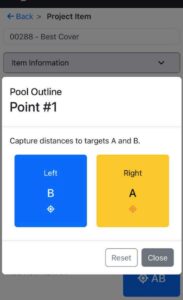
Press A to aim green laser
press A again to take measurement
